English
 Deutsch
 Español
 Français
 Italiano
 日本語
日本語 Русский
 中文
中文
How to Export Your CAD Files for a Smoother Surface Finish
- Published November 06 2025 - Updated September 18 2026
Optimizing Mesh Density, CAD File Formats, and CAD Export Resolutions for Superior 3D Printing Results.
The article below goes through steps and considerations for exporting CAD files in order to produce 3D prints with smooth surface finishes. This article is designed to be a simple blog. The blog below goes through each step in the export process for a CAD model to produce smooth surface finish 3D prints.
1. UNDERSTANDING SURFACE FINISH IN CAD
By understanding surface finish in CAD models you can ensure that your product’s appearance will be up to standard. In essence surface finish is the surface texture of your parts and products. It is also known as surface roughness, and is a critical parameter for products that will require appearance and functionality.
Higher density meshes can hold greater amounts of detail in your model, however, can increase in size quite rapidly. Proper surface normals are also important to get proper rendering and printing. The surface quality that is held in a CAD model can also be lost when transferring between different file formats.
2. STEPS TO EXPORT CAD FILES FOR A SMOOTHER SURFACE FINISH
Optimize Your CAD Model
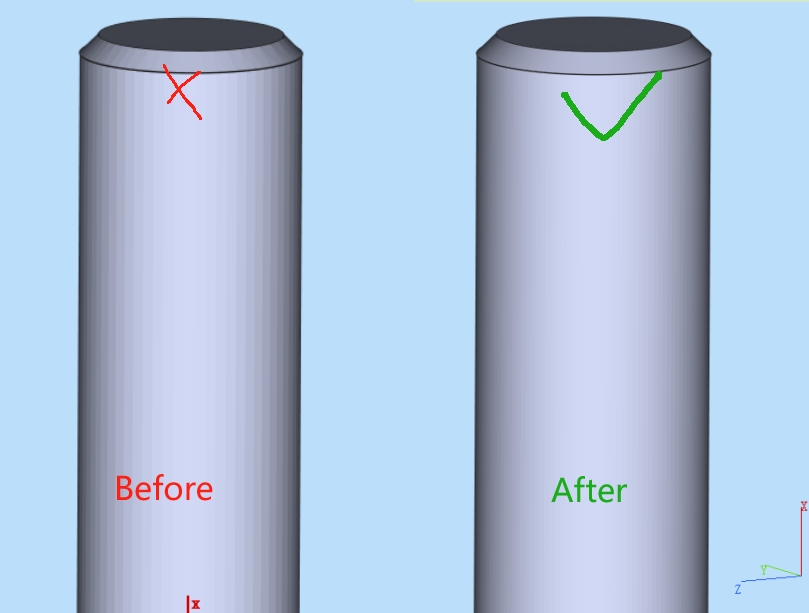
These details must not exceed the required amount for final design. Otherwise, they would create unnecessary complexity of the CAD model and then lead to high complexity of the created mesh during export of CAD model. Thus, it is necessary to round off sharp corners and edges of the model with so-called chamfers.
Check Mesh Quality
This can be done using the built-in analysis tools within your CAD software to analyze the mesh quality, checking for any non-manifold edges or for any surface normals that have been incorrectly set as being inward facing as opposed to outward facing. Most CAD software packages now contain tools that automatically repair common mesh errors and can greatly improve the surface quality of your models before they are exported.
Choose the Right File Format
All file formats are not equal when it comes to preserving surface quality of a CAD model.
Note: STL printed part's surfaces are approximated with Triangles, therefore low detail models will result in a rough surface even after smoothing.
If the STL file has a low resolution, try exporting it to OBJ format using Blender. Alternatively, import it into 3DS Max and convert it to a high-resolution polygon mesh, then simplify it in ZBrush. OBJ also supports vertex colors and texture mapping, making it a good choice for applications where appearance is important.
For higher accuracy engineering models (e.g. STEP files, IGES files) will typically retain more of the detail contained within the CAD model than a STL file. Exporting your STL file as a STEP file may resolve some of the precision related issues contained within the STL file.
Adjust Export Settings
The user should also check that the surface normal for each facet is pointing outwards (for Exterior surfaces). If the surface normal has been set to point inwards then this can cause problems with rendering as well as printing.
Post-Processing Techniques
It is also possible to apply a smoothing algorithm to the mesh after it has been exported from CAD. Tools such as Meshmixer and Blender can be used to increase the surface smoothness of a model. These tools can also be used to decrease the number of polygons in a model to decrease its file size, whilst maintaining its surface smoothness.
Test and Iterate
It is also useful to perform a small test print to assess the surface quality. It is possible to assess the surface quality on this website by uploading your model. Also, the model will be checked for insufficient wall thickness.
We would really appreciate it if you could upload your design and share it with your colleagues, contacts and even rivals to gain insight into any surface problems. IN3DTEC’s engineers would be happy to take a look at your design too.
CONCLUSION
Achieving a smooth surface finish for your CAD-exported files is a matter of careful CAD design, the choice of right CAD-file types and settings in the CAD-export process. Spending the right amount of time on optimizing your CAD files will yield models that are of better quality and therefore can be efficiently used for both 3D printing and other conventional manufacturing.